How to Find and Pay for On-Street Metered Parking with ParkMobile
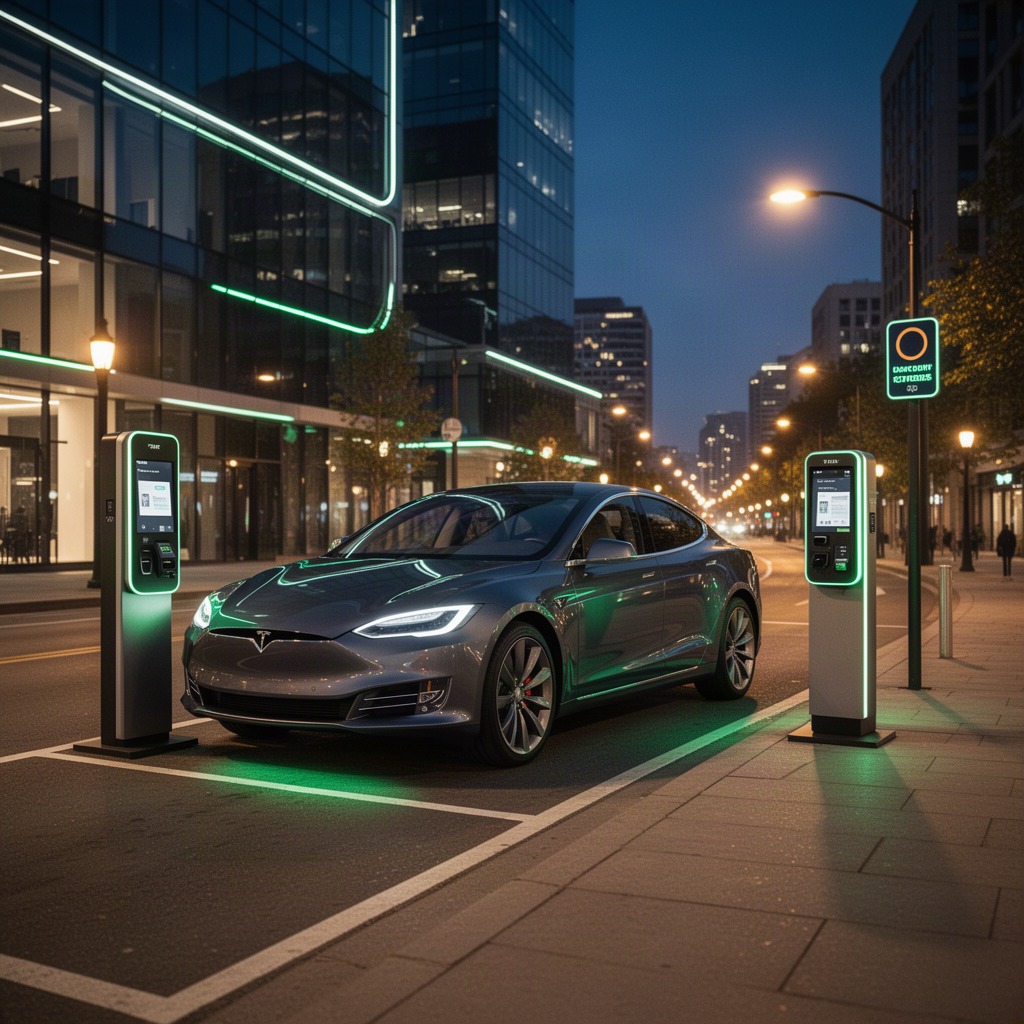
This page explains, in practical detail, how to locate an on-street metered parking space that accepts ParkMobile and how to pay for it from your phone. If you have ever circled a block hunting for quarters or squinted at a faded meter display, the goal here is to replace that friction with a few taps. ParkMobile lets you pay for a metered curb spot by matching the space to a zone number, confirming the rate, and starting a timed session, all without feeding a physical meter.
On-street metered parking is the paid, time-limited parking you find along public curbs in cities and towns. Traditionally it was managed by individual coin meters or pay-and-display kiosks. ParkMobile works as a mobile alternative to those machines, so instead of walking to a meter you open the ParkMobile app, tell it where you are parked, and pay for the exact length of time you need. The parking authority still sets the rates and the rules; ParkMobile simply handles the transaction and keeps the clock for you.
Throughout this guide we focus strictly on the metered, on-street use case. ParkMobile also covers off-street garages, lots, and event parking, but those work a little differently and are not the subject here. What follows walks you through every step of a metered session with ParkMobile, from spotting the signage to ending the session and getting your receipt, along with the rates, the enforcement details, and the questions drivers ask most often.
Quick version: Find the zone number posted on the meter pole or sign, open ParkMobile, enter that zone, pick your space or zone-only spot, choose your duration, and confirm. The app tracks your time and can remind you before it runs out.
How ParkMobile Replaces the Physical Meter
A traditional parking meter does three things: it knows the rate for that curb, it accepts your payment, and it displays how much time you have left. ParkMobile performs the same three functions digitally. The rate is stored against a zone, your payment runs through the card or digital wallet saved in your account, and the remaining time lives in the app rather than on a dial you can see from the sidewalk.
The link between the physical world and the app is the zone number. Every block or group of spaces that accepts ParkMobile is assigned a short numeric code. That code is printed on stickers and signs placed along the curb, on meter poles, or on nearby kiosks. When you tell ParkMobile which zone you are in, the app knows exactly which rate schedule and time limits apply to that stretch of street.
Some cities use ParkMobile in a space-specific way, where each individual parking bay also carries its own space number. In those places you enter both the zone and the space, so enforcement knows precisely which car paid. Other cities run zone-only parking, where you simply pay for the zone and your license plate is the identifier. ParkMobile adapts to whichever model your city uses, and the signage on the curb will tell you which one you are dealing with.
Because the meter is now your phone, there is nothing to print and nothing to display on your dashboard in most ParkMobile cities. Enforcement officers carry handheld devices that query the ParkMobile system by license plate or space number, so your active session is verified electronically. This is why registering the correct license plate in ParkMobile matters just as much as paying the correct rate.
What ParkMobile Tracks for You
- The zone and, where used, the exact space you occupy.
- The rate that applies at the current time and day.
- Your remaining time, counting down to the minute.
- The license plate tied to the paid session.
- A digital receipt saved to your ParkMobile history.
Finding the Zone Number at the Curb
Everything starts with the zone number, so your first task after parking is to find it. In most ParkMobile cities the number appears on green-and-white signage or stickers. Look at the meter pole directly beside your space, at the nearest pay station, and at the poles holding regulatory signs along the block. The zone is usually printed large and labeled with the ParkMobile name so it is easy to spot.
A zone number is typically four to six digits. It is unique to a specific block face or stretch of curb, which is how ParkMobile can apply the right rate automatically. If the same street changes rate on the other side, that side will carry a different zone number. Always read the sign nearest to where your wheels actually are, not the one at the far end of the block.
If you cannot find a posted zone, ParkMobile offers a location-based lookup. Open the app and let it use your phone location; nearby ParkMobile zones appear on a map, and you can tap the one that matches your position. This is useful at night, in poor weather, or when signage has been vandalized or removed. Still, the posted number is the authoritative source, so confirm it against the sign whenever you can.
In space-specific cities, each bay is also numbered, often stenciled on the curb or on a small plate at the head of the space. You will enter this space number in ParkMobile after the zone. Getting the space wrong can mean paying for a car that is not yours, so double-check the stencil before you confirm. When in doubt, ParkMobile shows a map of the numbered spaces within a zone to help you pinpoint yours.
Tip: Take a quick photo of the zone sign with your phone before you walk away. If your session drops or you need to start over, the number is right there and you will not have to walk back to the curb.
Starting and Ending a Parking Session
Once you have the zone, open ParkMobile and enter the number in the field at the top of the start screen. The app loads that zone and shows you the live rate, the maximum time allowed, and any restrictions in effect right now, such as a free evening window or a street-cleaning prohibition. Review this information before you pay, because the time limit on a curb is not something ParkMobile can override.
Next, confirm the vehicle. If you keep more than one car in ParkMobile, select the plate that matches the car you just parked. This is the single most common mistake drivers make, and it is the one most likely to result in a ticket, because enforcement checks the plate. ParkMobile saves your most recently used vehicle, so for most people this is a one-tap confirmation.
Then choose your duration. ParkMobile presents a slider or set of buttons for the amount of time you want, within the posted maximum. Pick a little more than you think you will need if the rate allows, since it is easier to let unused time expire than to race back for an extension. The app shows the running total, including the parking fee and the ParkMobile transaction fee, before you commit.
Confirm, and the session starts immediately. ParkMobile charges the payment method on file and shows a countdown of your remaining time. There is nothing to place on your dashboard in most cities. From here you can walk away; the clock runs in ParkMobile, and the app can notify you as your time runs low.
Ending a session is usually automatic. When your purchased time expires, ParkMobile stops the session on its own, so there is no need to return to your car. In zones that bill by actual time used rather than a flat block, you can end the session early in the app when you leave, and ParkMobile only charges you for the minutes you actually parked. Whether early-end crediting is available depends on your city, and ParkMobile shows this clearly on the active session screen.
The Session at a Glance
- Enter the zone number from the curb into ParkMobile.
- Confirm the license plate for the car you parked.
- Select your duration within the posted maximum.
- Review the rate and fees, then confirm payment.
- Let ParkMobile track the countdown; end early if allowed.
Understanding Rates, Time Limits, and Fees
The price of a metered space is set by the local parking authority, not by ParkMobile. Rates vary widely from city to city and even from block to block, and they often change by time of day. A busy downtown core may cost several dollars an hour during business hours, while a residential edge might be a fraction of that. ParkMobile always displays the live rate for your zone before you pay, so you never have to guess.
Alongside the parking rate, ParkMobile charges a small transaction fee per session for the convenience of paying by phone. This fee is shown on the confirmation screen before you complete payment, so the total you approve is the total you pay. The exact fee depends on your city and the pricing arrangement the parking authority has with ParkMobile, which is why it is not a single fixed figure everywhere.
Time limits matter as much as price. Many metered curbs cap how long any single car may stay, regardless of how much you are willing to pay, in order to keep spaces turning over. ParkMobile enforces that maximum by not letting you buy beyond it. If a block allows two hours and you need three, you will have to move your car rather than extend indefinitely, because the limit is a rule of the curb, not a ParkMobile setting.
The illustrative schedule below shows how a typical metered zone might be structured across a day. The figures are examples to show the shape of a rate table, not real prices for any particular city. Your actual zone rate, hours, and limit always appear inside ParkMobile at the moment you park.
| Period | Hours | Example Rate | Max Stay |
|---|---|---|---|
| Peak weekday | 8:00 AM to 6:00 PM | Higher per hour | 2 hours |
| Evening | 6:00 PM to 10:00 PM | Lower per hour | 3 hours |
| Overnight | 10:00 PM to 8:00 AM | Often free | No charge |
| Sunday | All day | Varies by city | Varies |
Notice how the example free overnight window would appear automatically when you open ParkMobile in that zone during those hours. You should still start a session only when the app indicates payment is required; if ParkMobile tells you parking is free right now, you do not need to pay. Reading the live screen is always more reliable than remembering yesterday's rate.
The rate on the curb belongs to your city. ParkMobile just carries it to your phone, exactly as posted, at the moment you park.
Extending Your Time Remotely
One of the clearest advantages of paying with ParkMobile is that you do not have to walk back to a meter to buy more time. If your meeting runs long or lunch turns into a longer stay, open ParkMobile from wherever you are and add minutes to the active session, provided the posted maximum has not been reached.
To make this easier, ParkMobile can send you an alert before your time expires. Turn on expiration reminders in your account settings and the app will notify you with enough lead time to decide whether to extend or move the car. For many drivers this single feature is the reason they prefer ParkMobile over fumbling with coins.
Remote extension has one firm boundary: the curb's maximum stay. If a block allows only two hours total, ParkMobile will let you extend up to that cap and no further, even in multiple small additions. This is by design, since the time limit exists to free up spaces for the next driver. When you hit the maximum, your only compliant option is to move the vehicle, and ParkMobile will make clear that no more time can be added.
A few zones also restrict or disable remote extensions specifically to enforce turnover, requiring you to physically return and re-park before buying a fresh session. Where that applies, ParkMobile shows it on the session screen so you are not caught out. Always check the active session view before you rely on extending from a distance.
How Enforcement Verifies Your Session
Because there is no paper receipt to display, enforcement in ParkMobile cities is electronic. Parking officers use handheld scanners or in-vehicle cameras that read license plates or check space numbers against the live payment system. When you have an active session in ParkMobile tied to the correct plate and space, the officer sees it and moves on.
This is exactly why plate accuracy is the backbone of compliant parking. If your ParkMobile session lists a different plate from the car at the curb, enforcement has no way to match the payment to the vehicle, and a citation can follow even though you paid. Before every session, glance at the plate ParkMobile has selected and make sure it is the right one.
Equally, the zone and space must be correct. Paying for the zone across the street, or for a neighboring space number, leaves your actual space unpaid in the system. ParkMobile cannot know that your tires are in a different spot than the one you entered, so the responsibility to confirm the number sits with you. A thirty-second check against the curb sign prevents the overwhelming majority of avoidable tickets.
If you do receive a citation while holding a valid ParkMobile session, keep the digital receipt. Your ParkMobile history records the zone, plate, times, and amount paid, which is the evidence you would present when disputing the ticket with the issuing authority. ParkMobile does not adjudicate citations itself, since the ticket is issued by the city, but the record it keeps is often what resolves an honest mix-up.
Three Checks Before You Walk Away
- Right plate selected for the car you actually parked.
- Right zone, and right space number where spaces are numbered.
- Session shows active with time remaining, not pending or failed.
How to Get Set Up Before Your First Meter
Setting up ParkMobile takes only a few minutes, and it is worth doing at home rather than at the curb with the clock running. Once your account is ready, every future session is just a matter of entering a zone and confirming. These steps get you from a fresh install to a paid session.
-
1. Create your account
Download ParkMobile and register with your email or phone number. You can also start a session on the web, but the app makes alerts and extensions far easier.
-
2. Add your vehicle
Enter the license plate exactly as it appears on the car. Add each vehicle you may park, and ParkMobile will let you pick the right one each time.
-
3. Save a payment method
Store a card or connect a digital wallet so ParkMobile can charge each session instantly without you re-entering numbers at the curb.
-
4. Turn on expiration alerts
Enable reminders in settings so ParkMobile warns you before your time runs out and offers a one-tap extension.
-
5. Park and pay
At your first metered curb, enter the posted zone, confirm the plate and duration, and let ParkMobile handle the rest.
Setting up once means every metered trip afterward is faster than reaching for your wallet. With your plate and payment stored, ParkMobile turns a two-minute meter chore into a few taps.
Review how a session worksFrequently Asked Questions
Do I still need to put money in the physical meter?
No. When you pay a metered space through ParkMobile, your payment is the meter. The coin slot or kiosk remains as a backup for people not using the app, but a valid ParkMobile session covers you without feeding the machine.
What happens if I enter the wrong zone number?
You would be paying for a different stretch of curb, which leaves your actual space unpaid. If you catch it quickly, correct the session in ParkMobile. This is why confirming the posted number before you confirm payment is so important.
Can I extend my parking without walking back to the car?
Yes, as long as the curb's maximum stay has not been reached and the zone allows remote extension. Open ParkMobile and add time from wherever you are, and the app will keep the session running.
How does a parking officer know I paid?
Enforcement is electronic. Officers check your license plate or space number against the live system, and a current ParkMobile session tied to the correct plate shows up as paid. There is nothing to display on your dashboard in most cities.
Is there a fee to use ParkMobile on top of the parking rate?
There is a small per-session transaction fee that varies by city. ParkMobile displays the full total, parking plus fee, on the confirmation screen before you pay, so you always see the final amount first.
What if I leave early? Can I get money back?
In zones that bill by actual time used, you can end the session early in ParkMobile and be charged only for the minutes you parked. Where the city sells fixed blocks of time, early departure does not refund the difference. The active session screen in ParkMobile tells you which applies.
Can I use ParkMobile if there is no visible zone sign?
Yes. Use the location-based lookup in ParkMobile to find nearby zones on the map and select the one matching your spot. The posted sign is still the authoritative source, so verify it against the curb whenever a sign is present.
Does ParkMobile set the parking prices?
No. Rates, hours, and time limits are set by the local parking authority. ParkMobile displays the live rate for your zone and processes the payment, but it does not control what the city charges.
Paying for on-street metered parking with ParkMobile comes down to a short, repeatable routine: find the zone, confirm your plate, choose your time, and let the app track the clock. Set up your account once, keep an eye on the live rate ParkMobile shows for each zone, and you can park at almost any participating curb without ever touching a meter.